Google analytics for Hugo websites
What are some useful website statistics?
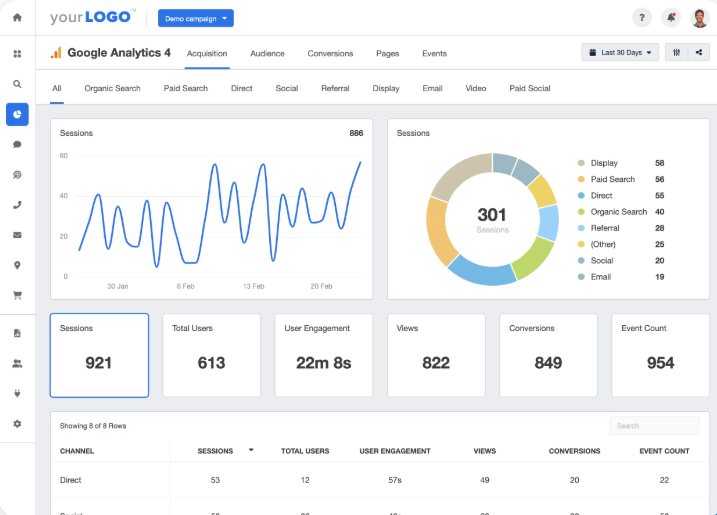
- ✅ Unique visitors = your total traffic number and the most important in this list. GA4 = Active users.
- ✅ Traffic sources = where are visitors coming from? organic search? social media? referral from another website? GA4 = Reports > Acquisition > Traffic acquisition.
- ✅ Entry pages = the first page of your website that a visitor lands on. GA4 = Reports > Engagement > Landing page
- ✅ Top visited page = which pages are getting the most attention once someone is on the side? GA4 = Reports > Engagement > Pages and screens
4 most valuable analytics metrics for your website
Most important website statistics you should be tracking, and how to take action
11 Google Analytics 4 (GA4) metrics all websites should track
What is google analytics and how to use it? Top 12 reasons
What tools do you use to monitor website traffic?
A website traffic analysis tool allows you to see
- who is coming to your website
- how they got there
- what they do
- whether they end up converting
Rankings
- ✅ Google analytics GA4 = I’m using this as its free and widely used
- ✅ Google Search Console = free
- ✅ Matomo = free (self hosted) / paid cloud
- Plausible / Fathom = paid (low monthly)
- Hotjar / Microsoft Clarity = Clarity free, Hotjar free + paid tiers
- ✅ Mixpanel / Amplitude = free tier + paid plans. My workplace uses Mixpanel
- Ahrefs / Semrush / Similarweb = Paid (SEO suites)
Best website traffic analysis tools in 2026
What tools do you use to monitor website traffic and other metrics?
What is Hugo?

✅ Hugo is a framework for building websites.
Written in Golang, its a very popular open source static site generator.
✅ You can write Markdown content that is converted to HTML web pages.
How to sign up for Google analytics

- Sign into https://analytics.google.com with your google account
- Create an Account, eg “my-website”
- Create a Property, specifying time zone, currency, etc = you get a Property ID
- Create a Data Stream: configure stream website URL = you get a Measurement ID: G-XXXX (or Tracking ID)
How to setup Google analytics for Hugo?
Google analytics require all your web pages to have the following code in the “head” tag of your web page
<head>
  <!-- Google tag (gtag.js) -->
  <script async src="https://www.googletagmanager.com/gtag/js?id=G-XXXX"></script>
  <script>
    window.dataLayer = window.dataLayer || [];
    function gtag(){dataLayer.push(arguments);}
    gtag('js', new Date());

    gtag('config', 'G-XXX');
  </script>
  ...
</head>
You can set this up in Hugo very easily.
- You need to find the page that edits the “head” tag. For ananke theme = layouts/baseof.html. You need to add google analytics at the start of “head” tag.
<head>
  {{ template "_internal/google_analytics.html" . }}
  ...
</head>
- In you toml config: add your tracking ID
[services.googleAnalytics]
id = "G-XXXX"
- ✅ When you run the hugo web site and check the public html pages, you’ll see the code added in the “head” tag
How to test Google analytics is working locally?
- Run your local website, eg http://localhost:1313 on a browser that hasn’t got privacy blockers installed
- Refresh the page
2.1. On Google Chrome, open the Sources tab = you’ll see a www.googletagmanager.com/gtag/js?id=G-XXX (trackingID)
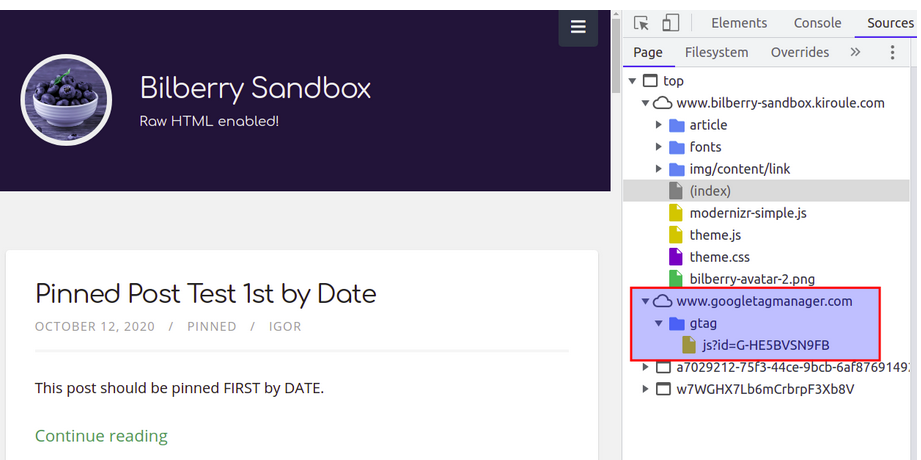 2.2. On network tab, you’ll see some calls to google-analytics
 - ✅ Once you see this, it should be working!
- ✅ Deploy your website code and in GA4 Reporting > Realtime overview = you should see 1 user (takes few minutes)
Integrate Google Analytics with Hugo themes and local testing tips